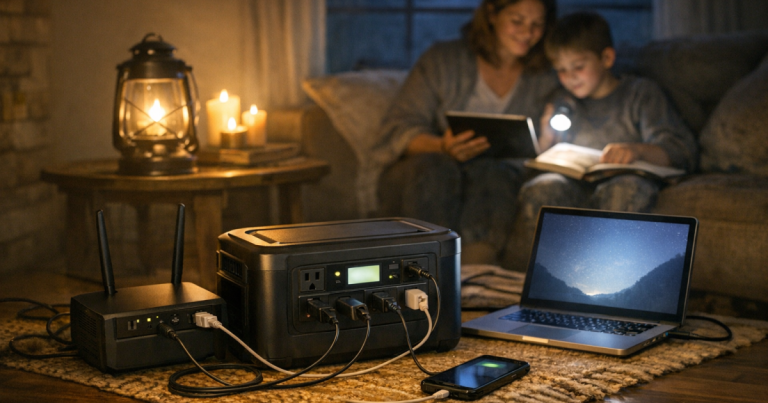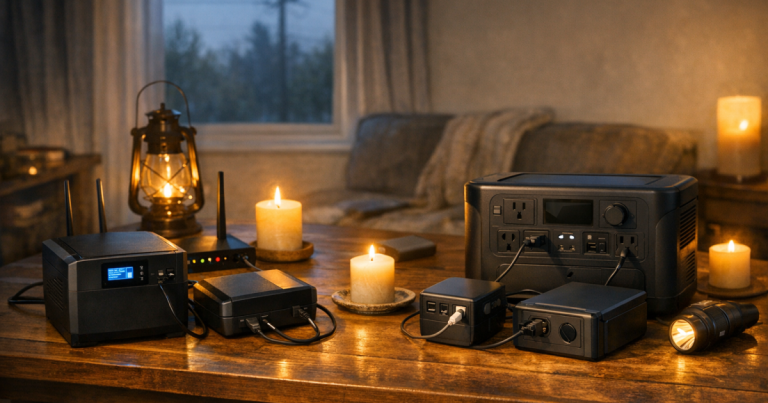
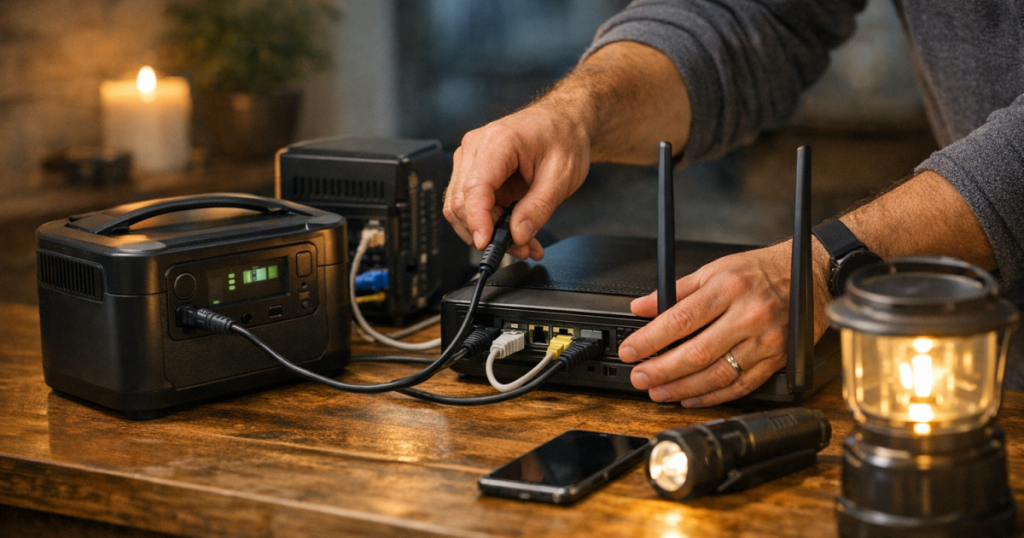
Wi-Fi usually fails in a blackout for a boring reason: the modem, router, or fiber terminal loses power before your phone or laptop does. To keep home internet running, you need backup power for the small networking boxes that bring the signal into your house, plus a plan for what to do if your provider’s outside equipment is also down. Start with the gear you already have, then add the right amount of battery backup instead of guessing.
Generator-to-home electrical connections and transfer-switch work should be carried out by a qualified electrician to comply with local electrical codes and safety requirements. Do not backfeed a home through an outlet or run a fuel-burning generator indoors, in a garage, or near open windows.
The short version
To keep Wi-Fi working during a power outage, power every device in the internet chain: the modem or fiber ONT, the router, and any mesh node needed to reach the rooms you use. A UPS is the simplest choice for short outages because it switches on automatically when utility power drops. A portable power station can extend runtime for longer outages, but it usually requires a more deliberate setup and periodic recharging.
There is one important limit: your home gear can only use internet service if your provider’s nearby network equipment is still operating. If the cable, fiber, or fixed wireless network is down outside your home, your local Wi-Fi may stay on but the internet connection can still fail. That is why a complete plan includes phone hotspot backup, downloaded essentials, and a way to conserve battery power.
Step 1: Find every box your internet depends on
Do not start with the router alone. Walk the path from the wall connection to the device you actually use. In many homes, that path includes a cable modem and separate Wi-Fi router. In fiber homes, it may include an optical network terminal, often called an ONT, plus a router. Mesh systems can add one or more satellite nodes around the house.
Write down the devices that must stay powered:
- Modem or fiber ONT: This is the handoff from your internet provider to your home.
- Router or gateway: This creates your home network and often your Wi-Fi signal.
- Mesh base station: If your router is part of a mesh system, the main node matters most.
- One satellite node, if needed: Power only the satellite that reaches your work area, bedroom, or main living space.
- Network switch, if used: Some homes have a small wired switch feeding desks, cameras, or access points.
If you miss one required box, the whole system can look alive while the internet still refuses to work. Label the plugs now so you are not tracing black cords behind furniture during a storm.
Step 2: Estimate the load before choosing backup power
Most home internet equipment uses much less power than a refrigerator, heater, microwave, or desktop gaming PC. That is good news, because it means a modest battery can often support the network for a useful amount of time. The catch is that runtime changes with the number of boxes, their power draw, battery size, battery age, and whether the backup is also running laptops, monitors, lamps, or phone chargers.
Check each power adapter label for output information, then look for watts on the device label or manufacturer documentation when available. If the label lists volts and amps instead of watts, multiplying volts by amps gives a rough maximum watt figure. A plug-in power meter can give a more realistic reading, but it is not required for a basic outage plan.
Keep the first setup lean. Internet equipment plus one phone charger is a different job than internet equipment plus a large monitor and multiple laptops. The fewer extras you connect, the longer your backup is likely to last.
Step 3: Use a UPS for short outages and automatic switchover
A UPS, or uninterruptible power supply, is the neatest solution for brief outages because your modem and router stay plugged in all the time. When utility power drops, the UPS battery takes over automatically. That automatic handoff is the part people appreciate most during a work call, weather alert, or family check-in.
Place the UPS near the modem and router, plug only the essential network devices into the battery-backed outlets, and leave high-draw appliances off the unit. Many UPS models also include surge-only outlets; those do not run on battery, so check the labeling before you rely on them. For router-focused setups, our guide to backup batteries for routers and modems explains the main home-network battery categories in more detail.
A 1500VA UPS can be a sensible step up when you want more headroom for networking gear, a small desktop, or a home office setup, but it still has limits. Runtime is not guaranteed by the VA rating alone; the actual load matters. If you are weighing that class of unit, the 1500VA UPS comparison breaks down the practical differences without assuming every home office needs the same backup plan.
Step 4: Add a portable power station for longer blackouts
For outages measured in many hours rather than minutes, a portable power station can take over from a UPS or recharge it later. This approach is especially useful for renters, apartments, townhomes, and households that cannot safely use a fuel generator. It can also keep phones, a laptop, a rechargeable lantern, and the internet stack on the same managed energy budget.
The main trade-off is workflow. A UPS is usually set-and-forget. A power station is more hands-on: you decide when to connect it, what to prioritize, and how to recharge it if the outage continues. Some households keep the modem and router on a UPS for seamless switchover, then move them to a larger power station once the situation is clearly more than a short flicker.
If you live in a building where generator noise, fuel storage, or outdoor placement is impractical, an apartment-friendly portable power station may be the cleaner path for longer communication backup. Match the setup to the devices you actually need, not the fantasy version where every outlet in the home behaves like normal.
Step 5: Make the Wi-Fi load smaller during the outage
Once the power is out, your job changes from convenience to endurance. A few small habits can stretch your backup noticeably.
- Turn off extra mesh nodes: Keep the main router and only the satellite you truly need.
- Skip large downloads and streaming: Save battery and bandwidth for weather updates, messaging, work files, and emergency information.
- Dim or shut down screens: A laptop and monitor can drain a battery much faster than networking gear alone.
- Charge phones in shifts: Top up one or two devices instead of leaving every cable plugged in.
- Use one work zone: Gather the household around the strongest Wi-Fi area instead of powering the whole mesh network.
A reliable way to keep home internet running through a realistic blackout is to treat Wi-Fi as an essential circuit, not a background convenience. Give it dedicated backup power, then protect that power from unnecessary loads.
Step 6: Test the setup before storm season
A backup plan earns its keep during a test, not during the first outage. Pick a calm day, warn anyone using the network, and unplug the UPS or switch the modem and router to the power station. Confirm that your phone or laptop stays connected, websites load, and any needed work tools still function.
During the test, note three things: which plugs must stay connected, how long the setup runs under your normal outage load, and what you would turn off first if the outage continued. You do not need lab-grade measurements. You need a household plan that someone else can follow when the weather is bad and the room is dark.
Also check the less glamorous details. Is the UPS battery healthy? Are cords long enough without creating a trip hazard? Is the modem in a hot closet where battery gear should not be crowded? Can you reach the power button without moving furniture? These small checks are where outage plans become usable instead of theoretical.
When the Wi-Fi is on but the internet is still down
If your router lights are on but nothing loads, the problem may be outside your home. Restarting the modem and router once is reasonable, but repeated power cycling wastes battery and rarely fixes a provider outage. Check your internet provider’s outage page from a phone connection if mobile data is available.
Have a backup communication path ready. Enable your phone’s hotspot before you need it, keep key contacts saved offline, and download critical documents when severe weather is forecast. A battery-backed router is helpful, but it should not be the only way your household gets information.
Useful follow-up checks
Will a UPS keep Wi-Fi on all night?
Maybe, but do not assume it. Runtime depends on the UPS battery capacity, the age and condition of the battery, and the combined wattage of your modem, router, mesh gear, and anything else plugged in. Test your actual setup and write down the result.
Should the modem and router be on the same backup battery?
Usually, yes. Keeping them on the same UPS or power station makes the setup simpler and avoids the situation where one device stays on while the other shuts down. If they are in different rooms, you may need two smaller backups or a cleaner equipment layout.
Can a generator run my internet equipment?
Yes, a generator can supply power to networking equipment when used safely outdoors and connected through appropriate cords or transfer equipment. For delicate electronics, many households prefer to place a UPS between the generator-supplied outlet and the modem/router to smooth short interruptions, but compatibility depends on the specific gear.
Why it matters
Keeping Wi-Fi alive during an outage is not about pretending everything is normal. It is about preserving the connection points that help a household stay informed, work when necessary, contact family, and make better decisions. Start with the modem, router, and one realistic use area; then build only as much backup as your home actually needs.