When the lights go out, your internet may still work if the modem, router, and local network gear keep running. Setting up backup power for Wi-Fi is usually a small, manageable project: identify the boxes that need electricity, estimate their load, and choose a safe way to keep them powered.
Generator transfer switches, hardwired backup circuits, and any connection to household electrical wiring should be installed by a qualified electrician in compliance with local electrical codes, manufacturer instructions, and safety requirements.
The short version
- Back up the modem, router, and any required fiber ONT, gateway, mesh base, or network switch.
- Use the power adapter labels or a plug-in watt meter to estimate the total load in watts.
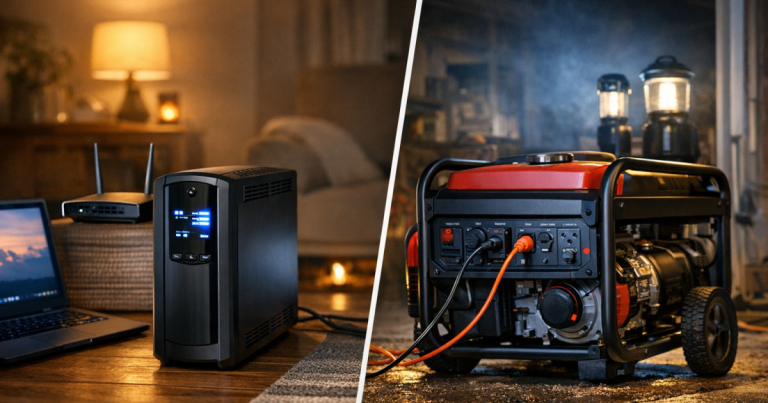
- For short outages, a UPS can keep internet gear running and prevent reboot delays.
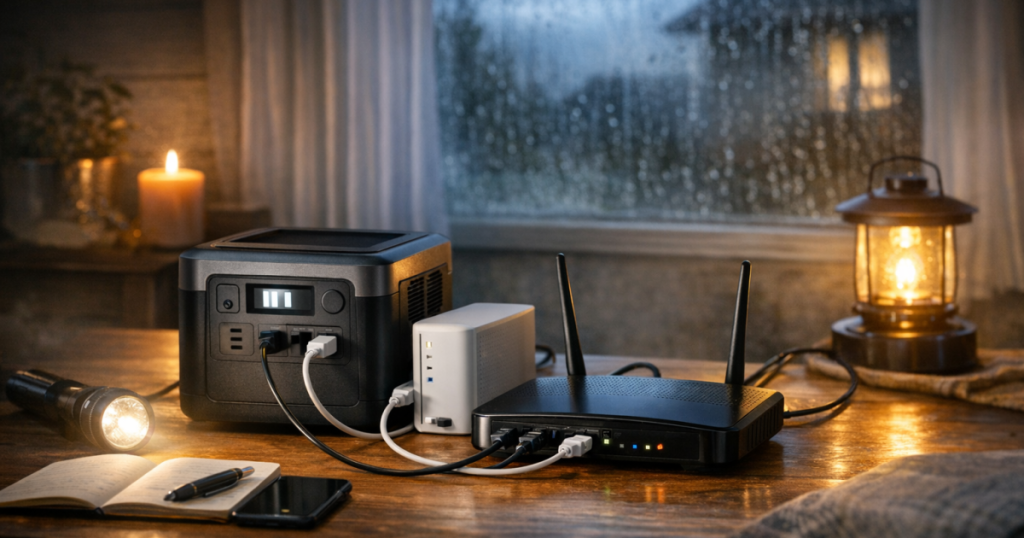
- For longer outages, a portable power station can run small network equipment for many hours, depending on battery size and actual draw.
- Do not run a fuel-powered generator indoors, in a garage, on a porch, or near open windows. Use it only outside with proper clearance and safe extension practices.
- If someone in the home depends on internet-connected medical equipment, plan that separately from casual browsing or streaming.
Step 1: Identify every device your connection needs
Most households think of “the router,” but the router is not always the only device that matters. If one required box loses power, the Wi-Fi name may still appear on your phone while the internet connection itself is dead.
Start at the wall where your internet service enters the home and trace the chain. You may have one combined gateway from your provider, or several separate pieces of equipment.
- Cable modem or fiber gateway: This is the box that connects your home to the internet service provider.
- Router: This creates your home network and often your Wi-Fi signal.
- Fiber ONT: Some fiber homes have an optical network terminal in a utility room, garage, basement, closet, or exterior enclosure. If it needs power, include it.
- Mesh Wi-Fi base unit: If you use a mesh system, the main node connected to the modem is essential. Remote nodes improve coverage but may not all be critical during an outage.
- Network switch: Include this if your router connects to wired devices through a separate switch.
- Power over Ethernet injector: Some access points, cameras, or outdoor wireless bridges need a PoE injector or PoE switch.
Label each power adapter with painter’s tape or a small tag. During a storm outage, it is much easier to move the correct plugs when you already know which cords keep the network alive.
Step 2: Estimate the watt load without guessing
Wi-Fi equipment usually draws much less power than refrigerators, microwaves, sump pumps, or space heaters, but the number still matters. Runtime depends on total watts, not on how important the device feels.
There are two simple ways to estimate the load:
- Read the adapter label: Many adapters list output as volts and amps. Multiply volts by amps to get watts. For example, 12 volts times 2 amps equals 24 watts. This is usually a conservative planning number rather than a promise of actual use.
- Use a plug-in power meter: A watt meter can show what your modem and router actually draw while running. Check the reading after the equipment has fully started up.
Add the devices together. If the modem uses an estimated 12 watts, the router 18 watts, and a small switch 8 watts, the planning load is about 38 watts. Your actual setup may be lower or higher, so verify your own labels instead of relying on a generic internet estimate.
Step 3: Match the backup method to the outage length
For internet gear, the main choices are a UPS, a portable power station, or a generator-supported charging plan. Each solves a different problem.
For brief outages: use a UPS
A UPS, or uninterruptible power supply, is designed to take over quickly when wall power drops. That matters because modems and routers can take several minutes to reboot, reconnect, and hand out Wi-Fi again. A UPS can also reduce nuisance interruptions from short power flickers.
A model such as the CyberPower CP1500PFCLCD is one real-world example of the kind of UPS people use for computers and networking gear, but the important check is not the brand name. Confirm the watt capacity, outlet layout, battery replacement approach, alarm behavior, and whether the unit is suitable for your equipment. Some UPS units are better suited to low-power electronics than others.
For longer outages: use a portable power station
A portable power station is often more flexible for a multi-hour or overnight internet plan. It can power your modem and router through AC outlets, and many models can later be recharged from a wall outlet, vehicle, generator, or compatible solar panel depending on the unit.
Runtime is always an estimate. As a rough example, if your network equipment draws 30 watts and a battery has 300 watt-hours of usable energy after losses, you might plan around several hours of internet time rather than a full multi-day guarantee. Inverter losses, temperature, battery age, and standby draw all reduce real-world results.
If you are deciding between a battery-centered setup and a panel-assisted setup, the difference is explained in more detail in portable power stations versus solar generators for home backup.
For multi-day outages: plan how you will recharge
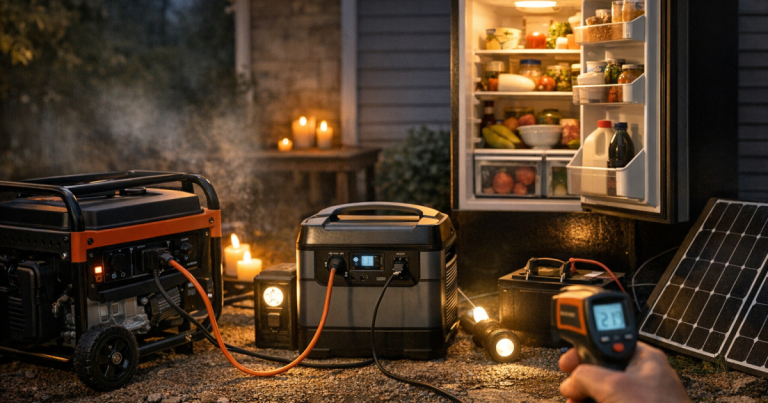
A battery that works well on day one still needs a refill plan if the outage stretches. For Wi-Fi, that may mean rotating between a UPS and a power station, charging the power station from a vehicle when safe and practical, or using an outdoor generator only during daytime charging windows.
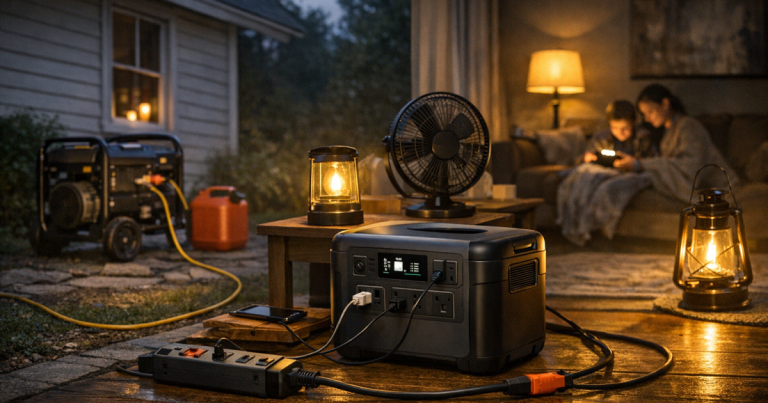
Do not put a generator near the modem and router just because the cords are short. Keep generators outdoors, away from doors, windows, vents, and attached spaces, and use cords rated for the load and conditions. For a deeper outage routine, see how to recharge a portable power station during a multi-day outage.
Step 4: Decide what really needs to stay online
During normal life, you may want whole-home Wi-Fi coverage. During an outage, the goal is usually simpler: phones, a laptop, weather alerts, work messages, school updates, and maybe Wi-Fi calling.
That changes how you set things up. You may not need every mesh node running. You may not need smart speakers, streaming boxes, gaming systems, printers, cameras, or decorative connected devices online. Each extra box shortens runtime.
A good outage network is intentionally boring. Power the smallest set of equipment that keeps the internet usable in one or two important areas of the home. If the family gathers in the kitchen or living room during an outage, put the router or main mesh node where it covers that zone well. If you work from a home office, test whether one powered node reaches that desk before you need it.
Step 5: Set up the equipment safely
Once you know the essential devices and estimated load, build a simple, repeatable setup.
- Keep network gear together when possible: A modem, router, and small switch are easier to back up when they are on the same shelf or in the same low-traffic area.
- Avoid overloaded power strips: Use a properly rated surge protector or UPS outlets as directed by the manufacturer. Do not daisy-chain power strips or UPS units.
- Control cord clutter: Route cords along walls where people will not trip over them in the dark.
- Leave ventilation space: Routers, gateways, UPS units, and power stations need airflow. Do not bury them under blankets or stack them inside closed bins while operating.
- Separate internet backup from high-draw appliances: Do not plug heaters, cooking appliances, hair dryers, or refrigerators into the same small backup source intended for networking gear.
- Use Wi-Fi calling carefully: If cell towers are congested or weak, Wi-Fi calling can help, but it still depends on your internet provider’s local equipment staying powered.
If someone relies on a connected medical device, remote monitoring, or a powered communication device, treat that as an essential-needs plan rather than a convenience setup. Start with planning backup power for home medical devices and verify requirements with the device provider or care team.
Step 6: Test before storm season
The best time to test internet backup is on a normal day, not after the first thunderstorm warning. A short test will reveal cord problems, missing adapters, weak batteries, and unrealistic runtime assumptions.
Try this simple check:
- Charge the UPS or portable power station fully.
- Plug in only the modem, router, and other essential network boxes.
- Confirm your phone or laptop can connect to Wi-Fi and reach the internet.
- Note the starting battery level and the time.
- Run for one or two hours if practical, then check remaining battery level.
- Write down a rough runtime estimate and store it with your outage plan.
Do not drain a battery to zero every time just to prove a point. A partial test is enough to show whether the setup works and whether your estimated load is in the right range.
What can still go wrong?
Home backup power only solves the equipment inside your home. Internet service also depends on your provider’s network, local utility power, neighborhood equipment, and physical lines. If a storm damages a cable line, fiber line, pole, or local node, powering your router will not restore service.
That does not make the setup useless. Many outages are short utility interruptions where the provider’s network remains available. In those cases, keeping the modem and router powered can preserve Wi-Fi calling, messaging, weather updates, and remote work continuity.
For a stronger plan, keep a charged phone, vehicle charging cable, battery bank, and offline copies of critical phone numbers. If your household depends heavily on internet access, consider a separate cellular hotspot plan or phone tethering option, but test it where you actually live. Signal quality can vary room by room.
Common questions
Will Wi-Fi work if the power is out in my neighborhood?
Sometimes. Your home equipment must have power, and your internet provider’s local equipment must also be working. If lines are damaged or the provider’s backup systems fail, your Wi-Fi may stay on without internet access.
Is a UPS better than a portable power station for a router?
A UPS is better for seamless short interruptions because it switches over automatically. A portable power station is often more useful for longer outages, but many do not switch as instantly as a true UPS. Verify the behavior of your own model before relying on it.
Should I power every mesh Wi-Fi node during an outage?
Usually no. Power the main node first, then add only the extra node needed for the room where people will use phones or laptops. Fewer devices means longer runtime.
Can I plug my router into a generator?
You can power networking gear from a generator through a safe, outdoor generator setup and properly rated cords, but many households find it cleaner to use the generator to recharge a power station instead. Never operate a generator indoors or in an attached garage.
How much battery capacity do I need?
Start with your total watt load and your target runtime. Multiply watts by hours, then add margin for inverter losses and battery aging. A 30-watt network for 10 hours needs more than 300 watt-hours in real use, not exactly 300.
Main lessons
Reliable internet during an outage is not about powering the whole house. It is about keeping the right small devices running: the modem, router, ONT if you have one, and only the network accessories that truly matter.
Estimate the load, choose a backup source that fits the outage length you are planning for, and test the setup before bad weather arrives. A quiet, simple Wi-Fi backup plan can make a blackout feel much more manageable, especially when you need weather updates, family communication, work access, or Wi-Fi calling.