Your internet may be one of the first things you miss when the lights go out: weather alerts stop refreshing, phones lose Wi-Fi calling, and remote work stalls. The most reliable way to keep Wi-Fi running during a blackout is to power the modem, router, and any required fiber or mesh equipment from a small battery backup, then plan a safe recharge path for longer outages.
Electrical panel connections, generator transfer equipment, and any hardwired backup-power work should be handled by a qualified electrician to meet local code, manufacturer instructions, and applicable safety standards.
The short version
- Power the whole internet chain, not just the Wi-Fi router. Most homes need the modem or fiber terminal powered too.
- A UPS is the simplest bridge for short outages, blips, and storm flickers.
- A portable power station can carry the same small network load longer, depending on battery capacity and the devices attached.
- A generator can recharge backup batteries or power a transfer-switch circuit, but it must run outdoors, away from doors, windows, vents, and garages.
- Home backup power cannot fix a damaged cable line, an ISP outage, or a dead neighborhood node.
First, find every device your internet depends on
Many outage plans fail because only the visible router gets plugged into backup power. Before choosing a backup method, trace the signal from the wall to your phone or laptop.
In a cable internet setup, you may have a coax modem and a separate Wi-Fi router. In a fiber setup, there may be an optical network terminal, often called an ONT, mounted in a garage, utility room, closet, or basement. Some homes have a gateway that combines modem and router functions in one box. Mesh systems may add one or more satellite nodes around the house. If you use wired devices, you may also have a small network switch.
Write the devices down in plain language: modem, router, fiber box, mesh node, switch. Then note where each one plugs in. If one critical box is in a garage and the router is in the living room, one battery in one location may not be enough.
Step 1: Decide what actually needs to stay online
For most households, the essential outage internet load is small: modem or ONT, router or gateway, and maybe one central mesh node. You probably do not need to power every satellite node, printer, desktop monitor, smart speaker, game console, or streaming box during a blackout.
Keep the plan focused on communication first. That usually means weather alerts, Wi-Fi calling, text messaging, work messages, school updates, and the ability to check outage maps. Entertainment is nice, but it should not drain the same backup battery you are counting on for alerts and calls.
If anyone in your home relies on connected medical devices, telehealth access, or power-dependent care equipment, internet backup should be part of a broader safety plan. Start with the household-specific checks in planning for blackouts with home medical equipment, then decide how Wi-Fi fits into that plan.
Step 2: Estimate the load in watts
Network gear usually draws far less power than refrigerators, space heaters, microwaves, or window air conditioners. Still, you need a real estimate because battery runtime depends on watts.
Look for the power label on each device or its power adapter. You may see watts directly, or you may see volts and amps. If the label lists volts and amps, multiply them to get a rough maximum watt estimate. For example, 12 volts times 2 amps equals about 24 watts. Actual use can be lower, but planning from the label gives you a conservative starting point.
A plug-in watt meter, such as the Kill A Watt P3 P4400, can give a more realistic reading for plug-in network gear. Check one device at a time, then add the numbers together. If your modem uses 12 watts and your router uses 18 watts, your basic internet load is roughly 30 watts before any losses from the backup device.
For battery planning, use a simple estimate: battery watt-hours divided by device watts equals possible hours, then reduce that number because inverters and electronics are not perfectly efficient. This is an estimate, not a guarantee. Battery age, temperature, device behavior, and the backup unit’s own overhead can all shorten runtime.
Step 3: Use a UPS for short outages and power flickers
A UPS, or uninterruptible power supply, is often the easiest way to keep a modem and router from rebooting every time the power blinks. It sits between the wall outlet and your network gear. When utility power fails, the UPS automatically switches to its internal battery.
This is especially helpful for short outages where the lights go out for a few minutes, power returns, then drops again. Without a UPS, the modem and router may spend several minutes restarting after each flicker. With a UPS, your internet gear may stay on continuously if the upstream ISP connection is still working.
Keep the UPS load lean. Plug in only the modem, router, fiber terminal, or small network switch you truly need. Do not plug in a laser printer, space heater, coffee maker, power tool charger, or other high-draw appliance. Those loads can overload the UPS or drain it quickly.
For a real-world electronics backup example, models such as the APC Back-UPS Pro BR1500MS2 and similar 1500VA-class UPS units are commonly used for computers and networking gear, but you should verify outlet layout, battery condition, load rating, and expected runtime for your own setup. You can also see how another common unit is evaluated in our CyberPower CP1500PFCLCD review.
Step 4: Use a portable power station for longer runtime
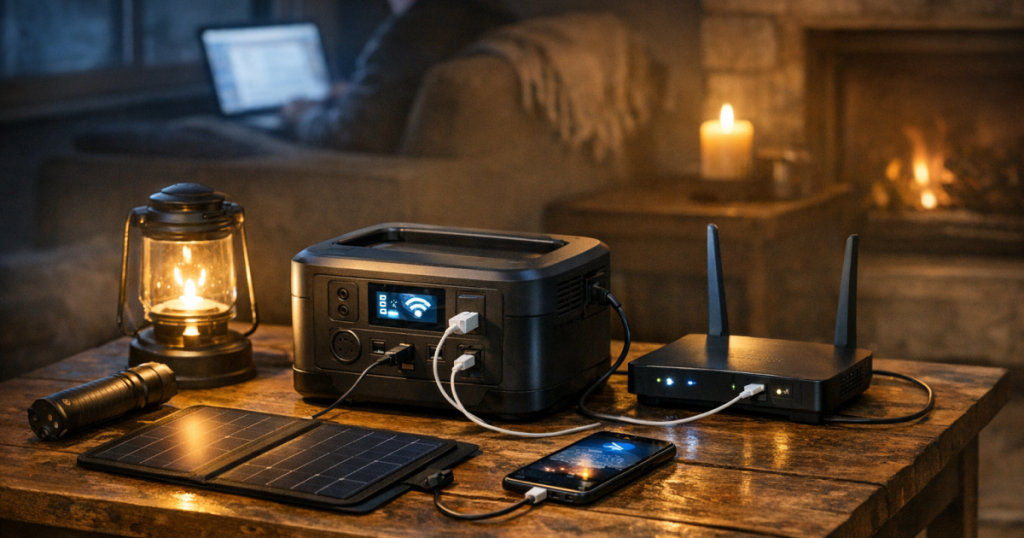
If your outages often last several hours, a portable power station can be a practical next layer. Instead of serving only as an instant handoff during a flicker, it can run low-watt devices for a longer stretch, depending on its usable battery capacity and the total load.
The simplest setup is to keep the modem and router on a UPS for automatic handoff, then move them to a portable power station if the outage continues. Another approach is to plug the network gear directly into the power station when the outage starts. The right workflow depends on whether you need seamless internet during brief flickers or just a way to stay connected once the power is out.
Check three things before relying on this approach: whether the power station can run while being recharged, whether it supports the type of outlet your gear uses, and how much power the station itself consumes while its AC outlets are on. Some network gear uses low-voltage DC adapters, but most households will simply use the station’s AC outlet. That convenience costs some efficiency, so include it in your runtime expectations.
For a plain-English explanation of the battery, inverter, and outlet side of this setup, read how portable power stations work during home outages.
Step 5: Keep the setup physically simple
During a blackout, you do not want to be crawling behind furniture with a flashlight trying to remember which black power brick belongs to which box. Make the setup obvious before the storm season, wildfire shutoff window, or winter outage risk arrives.
- Label the modem, router, ONT, and mesh power cords with tape or cord tags.
- Place the UPS or power station where it has airflow and is not buried under blankets, papers, or storage bins.
- Keep network gear off the floor in basements, garages, and utility rooms where water intrusion is possible.
- Use manufacturer-approved cords and avoid daisy-chaining power strips into backup devices unless the device instructions allow it.
- Keep one small flashlight or headlamp near the network equipment so you can check status lights safely.
If you have a mesh system, decide which node matters most. In many homes, the main router or gateway is enough to cover a central area during an outage. Powering every node may add convenience, but it also increases load and complexity.
Step 6: Test it before you need it
A Wi-Fi backup plan is only useful if it works in your actual house. Test it on a calm day, not during a storm warning.
Start by fully charging the UPS or power station. Connect only the essential network devices. Then unplug the UPS or power station from the wall outlet and confirm that the modem, router, and Wi-Fi stay on. Do not turn off breakers or open electrical panels just to test internet backup.
Give the system enough time to prove itself. Some modems and fiber terminals keep status lights on even when the internet connection has dropped, so use a phone or laptop to load a simple webpage, send a message, or check a weather site over Wi-Fi. If you rely on Wi-Fi calling, place a brief call and confirm it routes properly.
Write down the time you started the test and when you stopped. You do not have to drain the battery completely. Even a one-hour controlled test can reveal whether the load is too high, a cord is missing, or the wrong device is plugged in.
Step 7: Plan for the moment the ISP goes down
Backup power keeps your home network equipment alive, but it does not control the entire internet path. If a tree takes out the cable line, a fiber service box loses upstream power, or your provider has a regional outage, your router may be powered and still have no internet.
That is why a good communication plan has layers. Keep phones charged. Enable Wi-Fi calling before an outage, not after the cell network is congested. Know whether your phone plan includes hotspot use, and test it briefly at home. Keep a battery bank available for phones separately from the battery running your modem and router.
A NOAA weather radio, such as the Midland WR400 Deluxe NOAA Weather Alert Radio, can also give you alerts when both home internet and cell service are unreliable. It is not a substitute for Wi-Fi, but it fills an important information gap during severe weather.
Generator recharging without creating new risks
For multi-day outages, some households use an outdoor generator to recharge a UPS replacement battery, portable power station, phones, and other essentials. Keep the roles clear: the generator is for safe outdoor power production, while the battery system can keep small indoor electronics running quietly between recharge sessions.
Never run a generator inside a home, garage, basement, porch, breezeway, shed, or near open windows and vents. Carbon monoxide can build up quickly and cannot be managed by opening a door. Let the generator cool before refueling, store fuel according to local rules and product instructions, and use outdoor-rated cords sized for the load.
If you use a transfer switch or interlock to power selected home circuits, know which circuit feeds your modem, router, or fiber terminal. That way, your internet gear can be included in the essential-load plan rather than treated as an afterthought.
A simple blackout Wi-Fi checklist
- List every device required for internet: modem, router, ONT, mesh nodes, and switches.
- Find or measure the watt draw for the essential devices.
- Put only the essential network gear on the UPS or power station.
- Label cords so the setup is easy in the dark.
- Test Wi-Fi, messaging, and Wi-Fi calling from battery power.
- Keep a separate phone charging plan so one battery does not do every job.
- Write down what worked and what failed after each outage or test.
FAQ
Will my Wi-Fi work if the power is out in my neighborhood?
It might, but it depends on your internet provider’s local equipment and physical lines. If your modem, router, and provider’s network path still have power and service, your Wi-Fi can keep working. If the upstream network is damaged or offline, home backup power will not restore the connection.
Is a UPS or portable power station better for home internet?
A UPS is better for automatic handoff during flickers and short outages. A portable power station is usually more useful when you want longer runtime or a rechargeable battery hub for several small devices. Many homes use both: UPS first, power station for extended outages.
Can I plug my router into any power strip during a blackout?
Use the outlets and cord setup recommended by the UPS or power station manufacturer. Avoid daisy-chaining multiple power strips, and do not add high-draw devices to the same backup unit. A simple, direct connection is easier to troubleshoot and safer to manage.
How long will a router run on battery backup?
Runtime depends on the battery’s usable watt-hours, the combined watt draw of your modem and router, inverter losses, temperature, and battery age. Measure or estimate your device load, then test the setup at home for a more realistic number.
Should I power every mesh Wi-Fi node?
Usually not. Start with the main gateway or router, then add one mesh node only if coverage is poor in the room where you will actually use phones or laptops during an outage. Fewer powered devices usually means longer runtime.
Key takeaways
Keeping Wi-Fi alive during a blackout is less about buying the largest backup system and more about powering the right small devices. Identify the full internet chain, measure the load, use a UPS for short interruptions, add a portable power station for longer outages, and keep a backup communication method for times when the provider’s network is down.
The calmest outage setup is one you have already labeled, tested, and simplified. When the lights go out, your goal is not to run the whole digital house. It is to keep the essential connection online long enough to get alerts, communicate, work if needed, and make the next safe decision.